---
updatedAt: 2025-02-04T15:47:46.000Z
agentTools:
projectIndex: https://help.ttnc.co.uk/llms.txt
---
# Additional Account Users
You can now set up additional Users for your myTTNC account and set up Permissions for those Users, allowing or restricting access to services, actions and areas within myTTNC.
## How does it work, and what can you do?
The account holder has a hidden '**Owner**' role, and only they have full access to set up Users and Permissions. You can have the following types of users:
* **Administrator**: Full access rights - except cannot edit the Account owner details.
* **Editor**: Can view and edit all services except financial services, including the store.
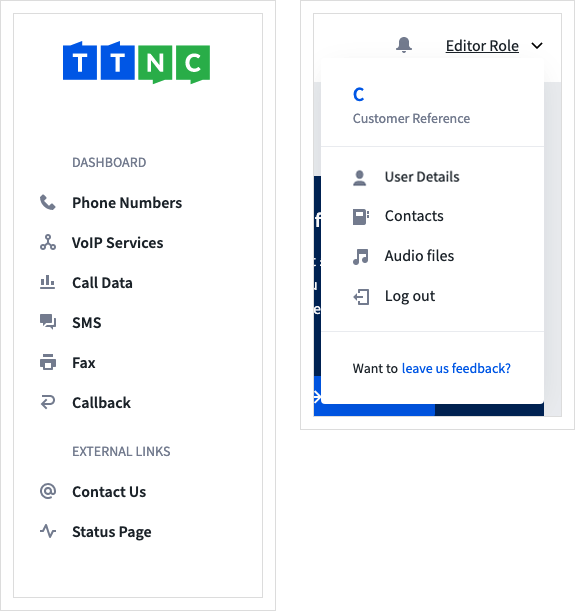
* **Call Reporting**: Can only view Inbound and Outbound Call Logs, and Download CSV stats.
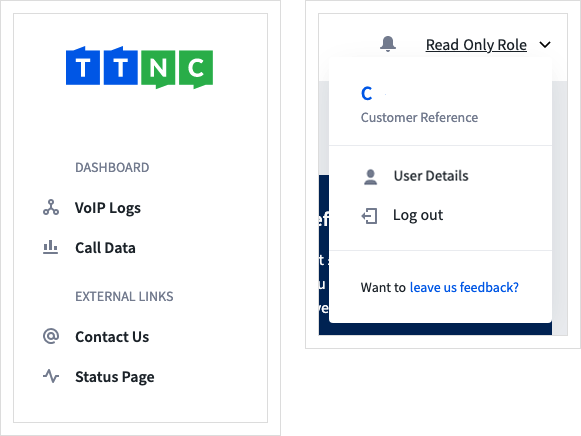
* **Contact Only**: User to receive different notifications and alerts
There are no limits to the number of users you can add to your account.
## Creating a New Additional User
To create a user, follow these steps:
1. Log into myTTNC by going to [www.myttnc.co.uk](https://www.myttnc.co.uk)
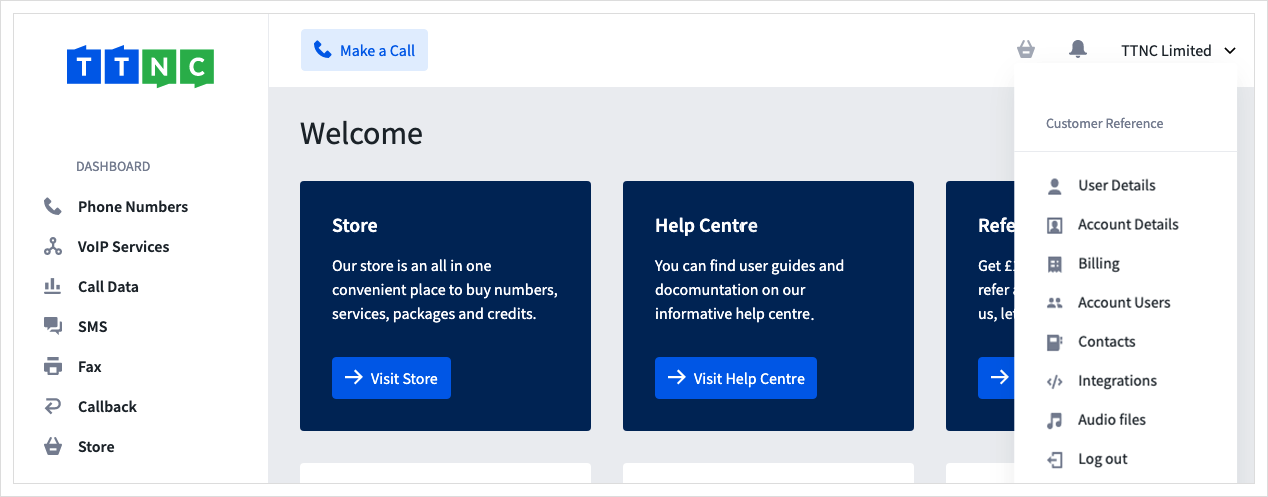
2. Click on the Account menu drop-down in the top right corner of the page.
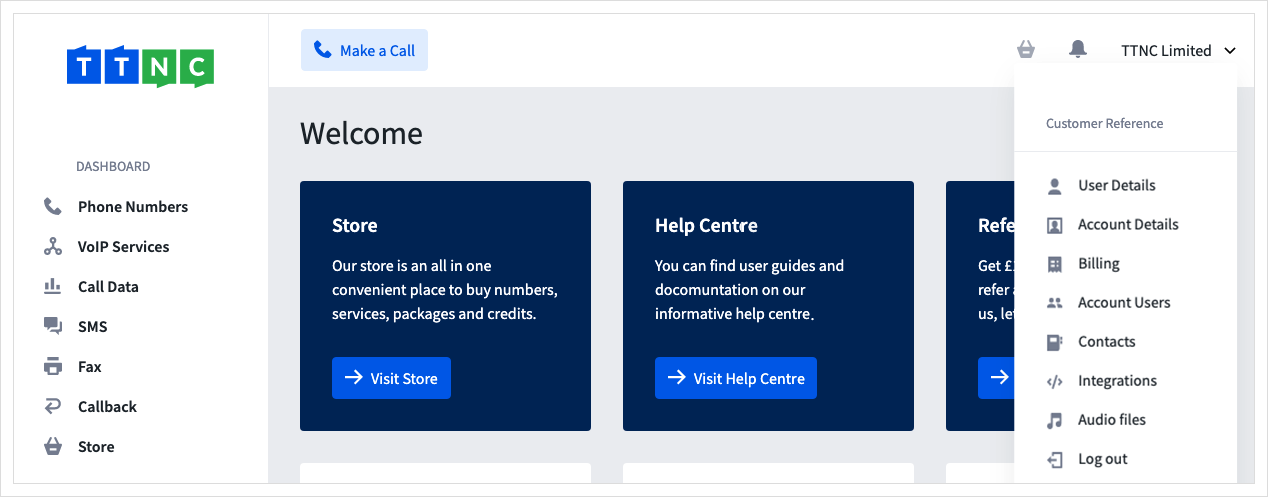
3. Click on `Account Users` from the menu.
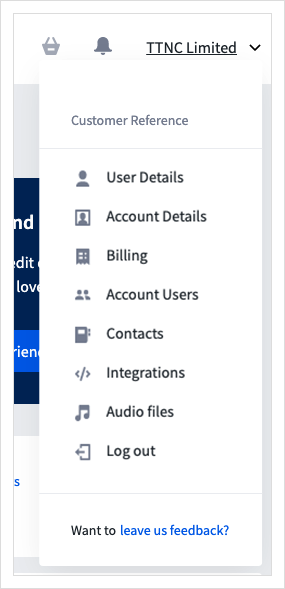
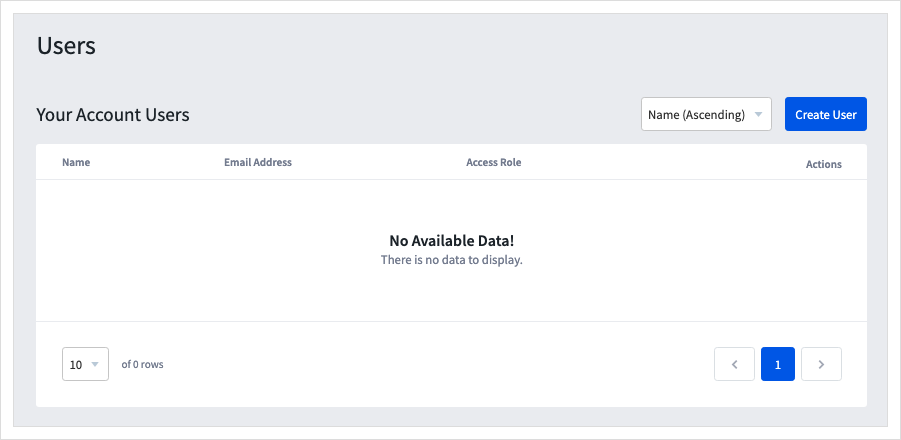
4. Click `Create User`
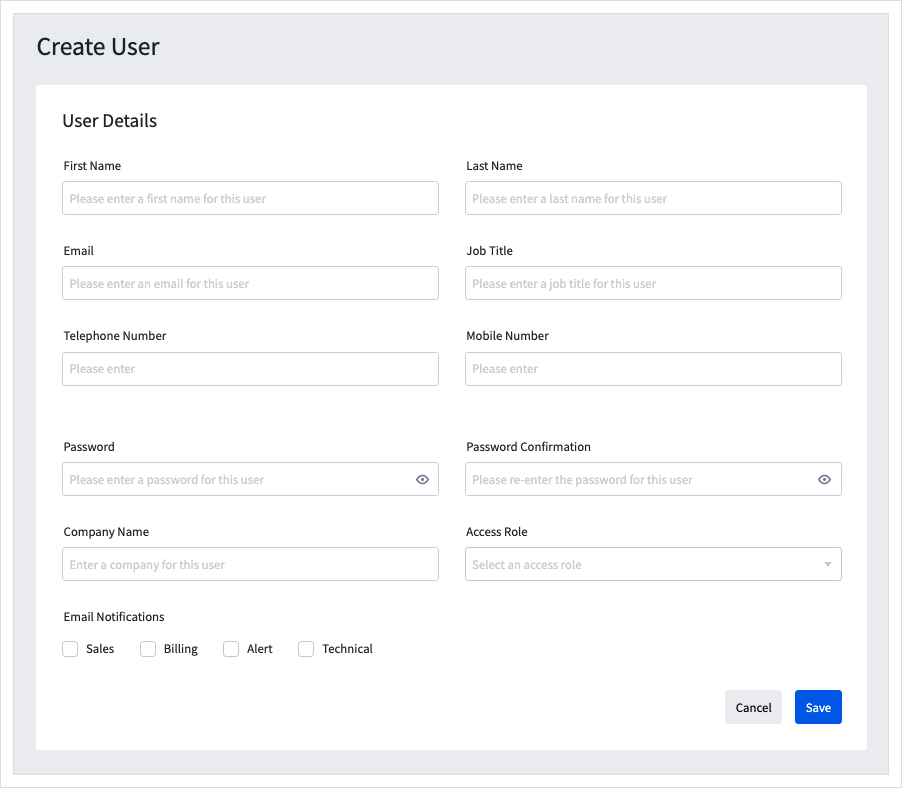
5. Enter the new user's details.
6. Set the User's 'Access Role' from the drop-down list. The options are:\
**Administrator**, **Editor**, **Read Only** or **No Login**
7. Select which emails you want the contact to receive. The options are:\
**Sales**, **Billing**, **Alert** or **Technical**
8. Once you've filled out all the information, click `Save`
> 📘 Please note
>
> You will need to send the Username and Password to any additional users you have set up with their login details so be careful about security.
## Editing an Additional User
Just follow these steps to edit a user:
1. Log into myTTNC by going to [www.myttnc.co.uk](https://www.myttnc.co.uk)
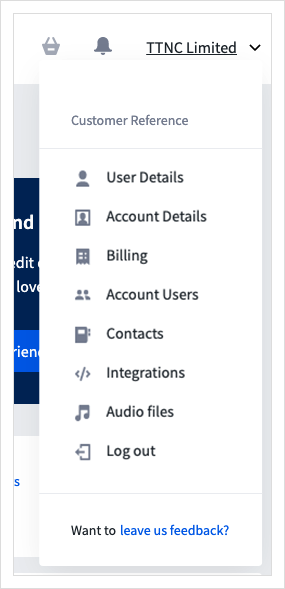
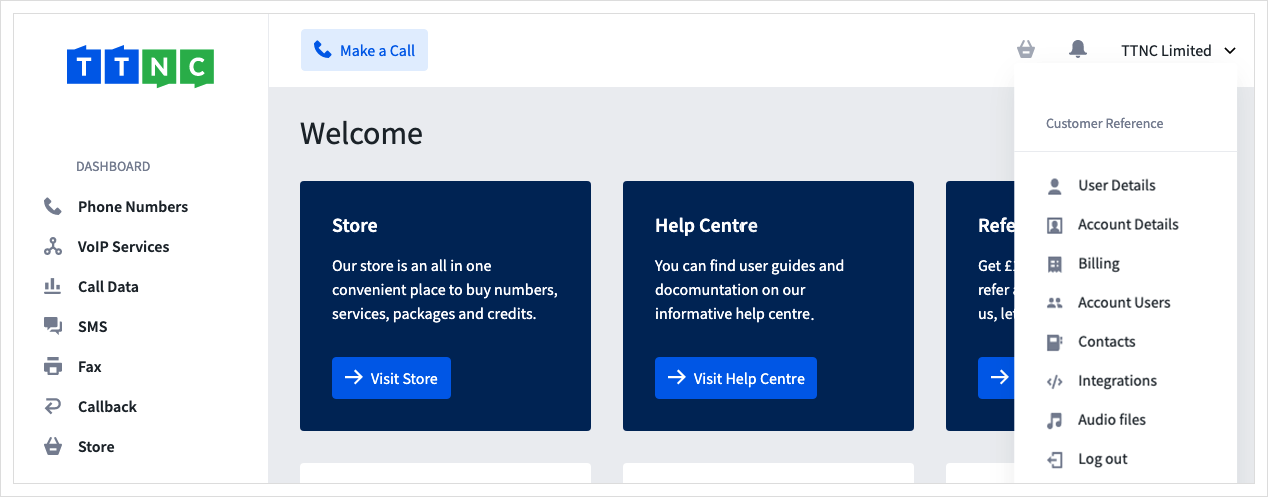
2. Click on the Account menu drop-down in the top right corner of the page.
3. Click on `Account Users` from the menu.
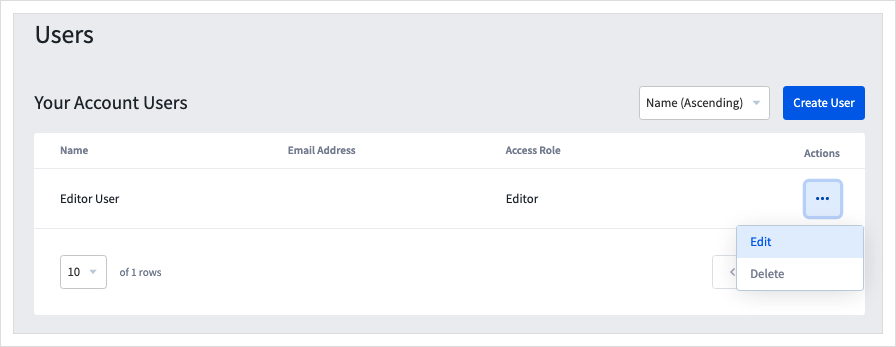
4. Click on the three dots next to the User you wish to amend and click `Edit`
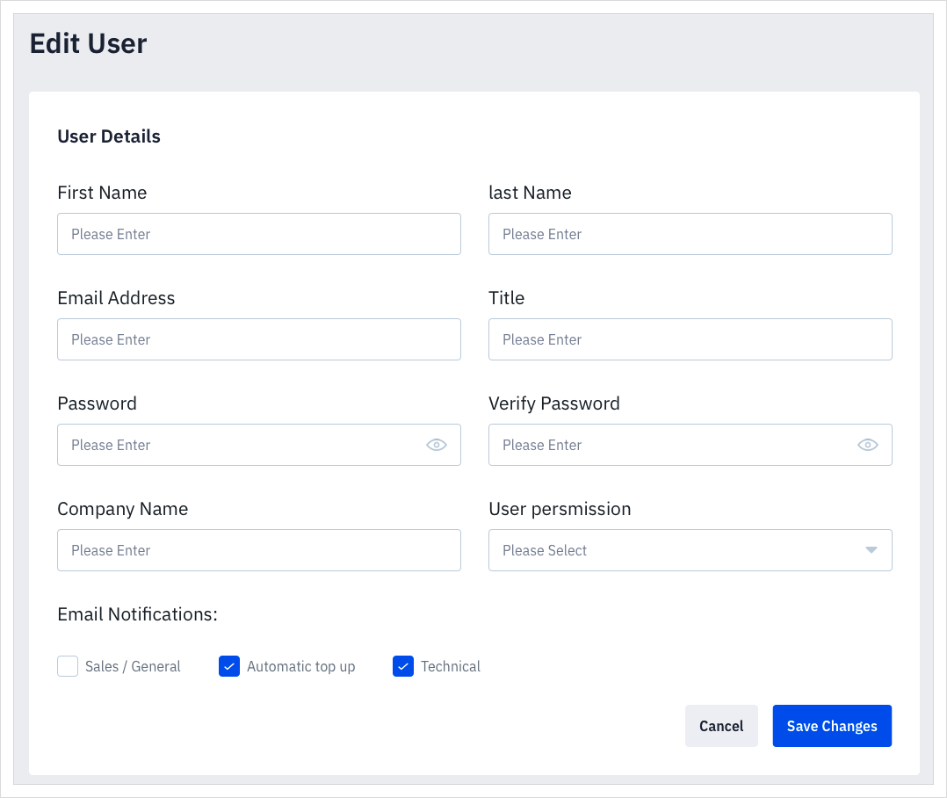
5. Once you've filled out all the information, click `Save Changes`
## Deleting an Additional User
If you no longer need an additional user, you can delete it from your account.
1. Log into myTTNC by going to [www.myttnc.co.uk](https://www.myttnc.co.uk)
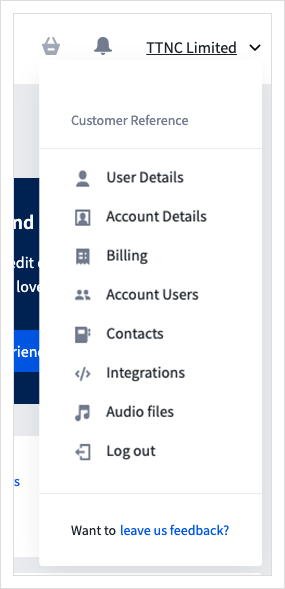
2. Click on the Account menu drop-down in the top right corner of the page.
3. Click on `Account Users` from the menu.
4. Click on the three dots next to the User you wish to amend and click `Delete`

> 📘 Please note
>
> Deleting an account user will remove access to the account and remove all email notifications.